How to Build a Forest in Godot 4 That Doesn't Kill Your FPS: MultiMesh, LOD and Visibility Ranges
A practical guide to fast vegetation in Godot 4: triangle budgets, automatic mesh LOD vs visibility ranges, chunked MultiMesh, leaf transparency, shadows, occlusion culling and how to measure the result.
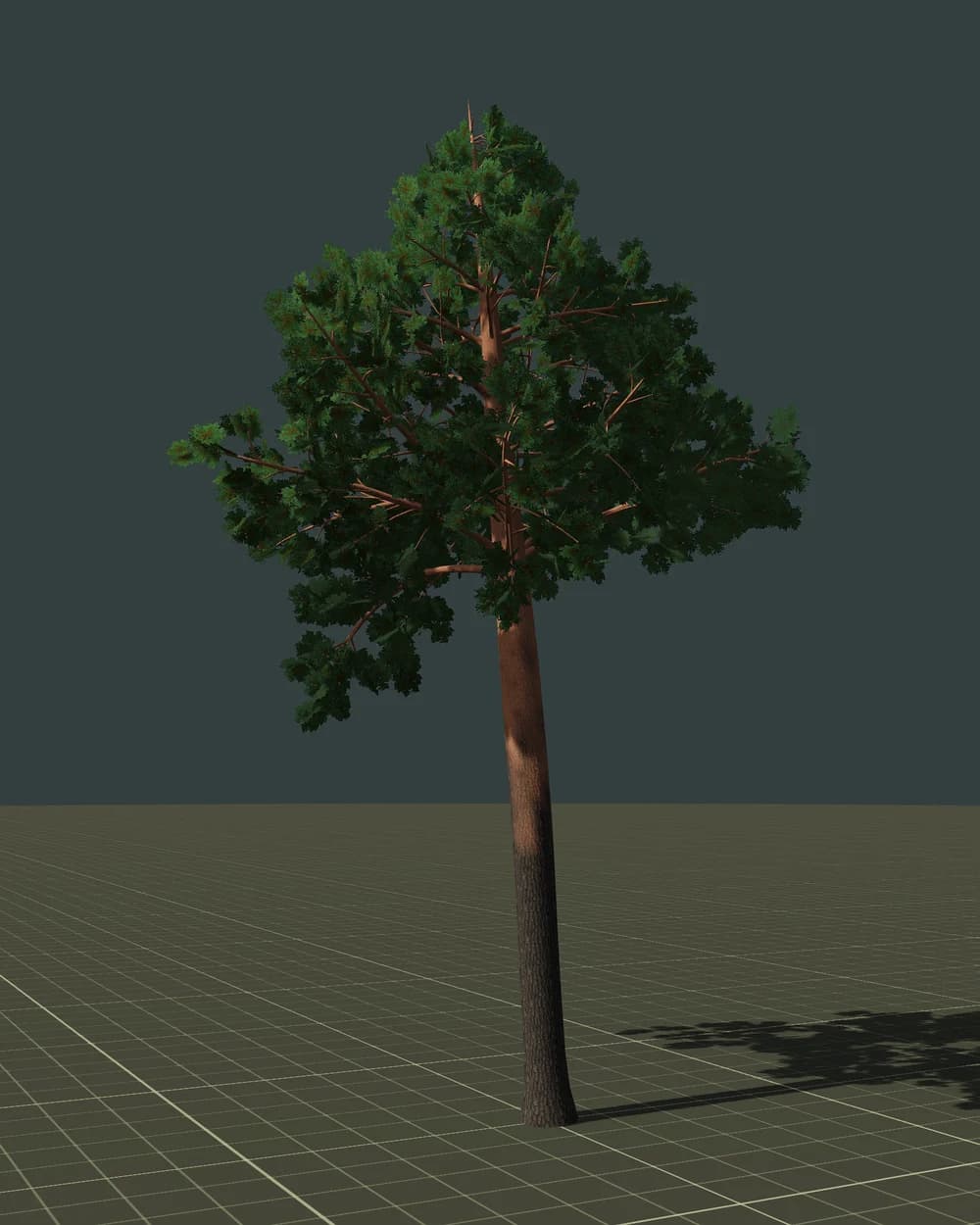
The first forest in a Godot project usually looks great — until you walk into it. Two hundred trees later the frame rate halves, the profiler shows thousands of draw calls, and nobody is sure which setting to change. A user on the Godot forum described exactly this: a home-made grass LOD system ended up at about 10 FPS and more than 3,000 draw calls on a small patch of land.
The good news: Godot 4 has every tool you need for a big, fast forest. They just have to be combined in the right way. This guide goes through them in the order that matters — budget, LOD, instancing, leaves, shadows, culling — and ends with a checklist.
Why forests are slow
A tree is one of the most expensive objects in a game. It costs you in four places at once:
- Draw calls. Every tree is at least two meshes (bark and leaves), often with different materials. A hundred separate trees means hundreds of draw calls before you have drawn anything else.
- Triangles and vertices. A detailed tree easily has 40,000+ triangles. Fine for one hero tree, fatal for a hillside.
- Overdraw. Leaves are cards with transparent pixels. The GPU still shades the invisible parts, layer over layer, for every card in the crown.
- Shadows. Every tree is drawn again into the shadow map — sometimes several times, once per shadow cascade.
Each technique below attacks one or more of these costs.
Step 1. Decide the budget before you build anything
The single most useful habit is to decide how many triangles a tree may cost at each distance before you model or generate it. Here is a real oak from FoliMesh, as an example of what a game-ready chain looks like:
| Level | Distance (example) | Triangles |
|---|---|---|
| LOD0 | 0–30 m | 14,490 |
| LOD1 | 30–70 m | 3,984 |
| LOD2 | 70–150 m | 1,154 |
| Impostor | 150 m + | 2 |
The important part is not the exact numbers but the shape of the curve: every level is roughly 3–4 times lighter than the previous one, and the farthest trees cost almost nothing. On mobile, divide everything by two or three. Most of your forest is far away, so most of your forest should be cheap.
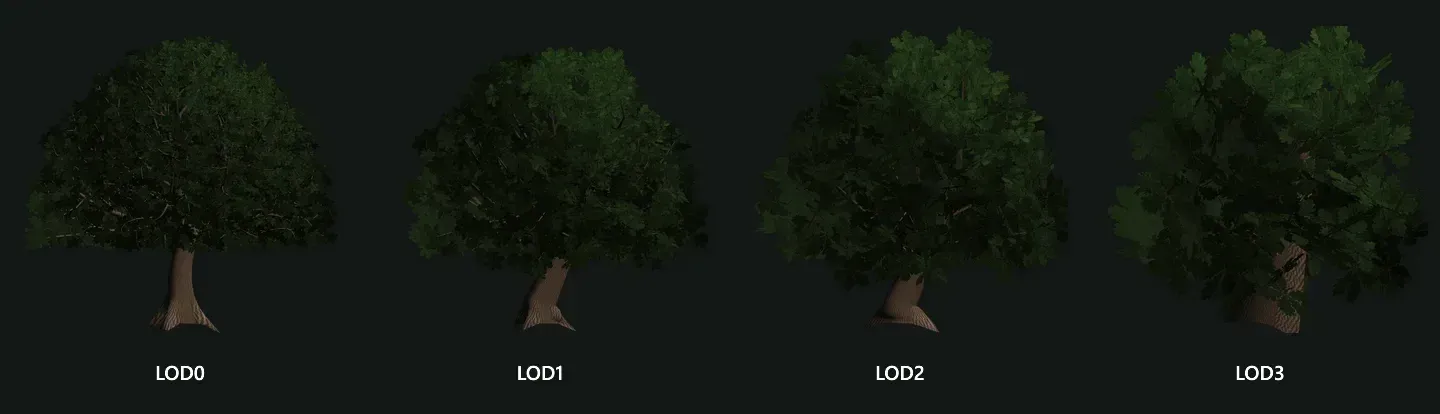 The same tree on four levels of detail: the silhouette stays, the triangle count drops.
Step 2. Choose the LOD mechanism: automatic mesh LOD or visibility ranges
Godot 4 offers two different LOD systems, and choosing the wrong one for trees is a common source of trouble.
Automatic mesh LOD. When you import a glTF, .blend or FBX scene, Godot generates simplified versions of each mesh with meshoptimizer and switches between them on its own. According to the official documentation, the choice is based on the point of the node's bounding box closest to the camera and on how many pixels the error would cover (Rendering → Mesh LOD → LOD Change → Threshold Pixels, 1 pixel by default). Each node also has a LOD Bias.
This works well for rocks, buildings and props — continuous surfaces. A tree crown is different: it is hundreds of separate leaf cards. Generic simplification was not designed for that, and the result can be a thinning, distorted crown. The documentation itself recommends a different tool when you have hand-made LODs.
Visibility ranges (HLOD). Here you provide the LOD meshes yourself and tell each one at which distance it is visible. Every GeometryInstance3D has:
visibility_range_begin/visibility_range_end— the distance band in which the node is drawn (measured to the centre of its bounding box);visibility_range_begin_margin/visibility_range_end_margin— a buffer zone so that the level does not flicker when the camera stands right on the border;visibility_range_fade_mode— Disabled (instant switch, fastest), Self or Dependencies (alpha fade; it forces transparent rendering during the transition, which costs performance).
For trees, visibility ranges are the reliable choice: the LODs are designed for foliage, the distances are under your control, and you can drop shadows or switch to an impostor on the last level. A minimal setup for one tree:
# Tree.gd — children: LOD0, LOD1, LOD2 (MeshInstance3D)
extends Node3D

@export var lod_starts := PackedFloat32Array([0.0, 30.0, 70.0])
@export var cull_distance := 150.0

func _ready() -> void:
	for i in get_child_count():
		var mi := get_child(i) as MeshInstance3D
		if mi == null:
			continue
		mi.visibility_range_begin = lod_starts[i]
		mi.visibility_range_end = lod_starts[i + 1] if i + 1 < lod_starts.size() else cull_distance
		mi.visibility_range_end_margin = 2.0
		mi.visibility_range_fade_mode = GeometryInstance3D.VISIBILITY_RANGE_FADE_DISABLED
If the switch is visible, first make sure the LODs keep the same silhouette — that matters more than any fade setting.
Step 3. Many trees: MultiMesh, but in chunks
Separate nodes are fine for a few dozen trees. For thousands you need MultiMesh: one MultiMeshInstance3D draws any number of copies of a mesh in one draw call.
There is a catch that surprises almost everyone. The documentation states that nodes that draw many meshes at once — MultiMeshInstance3D and particles — draw all instances at the same LOD level, and culling can only remove the node as a whole, not individual instances. A Godot maintainer confirmed it in issue #76436: one MultiMesh for the whole level means no per-tree LOD and no frustum or occlusion culling.
The solution is chunks. Split the world into a grid and give every cell its own MultiMesh for every LOD level, each with its own visibility range. Far chunks show the light LOD, near chunks the detailed one, and chunks behind the camera are culled entirely.
# ForestChunks.gd — builds chunked MultiMeshes with visibility ranges
extends Node3D

@export var lod_meshes: Array[Mesh] = []   # LOD0, LOD1, LOD2, impostor
@export var lod_starts := PackedFloat32Array([0.0, 35.0, 80.0, 160.0])
@export var cull_distance := 400.0
@export var chunk_size := 32.0

func build(transforms: Array[Transform3D]) -> void:
	var chunks := {}
	for t in transforms:
		var key := Vector2i(floori(t.origin.x / chunk_size), floori(t.origin.z / chunk_size))
		if not chunks.has(key):
			chunks[key] = []
		chunks[key].append(t)
	for key in chunks:
		_build_chunk(chunks[key])

func _build_chunk(items: Array) -> void:
	for i in lod_meshes.size():
		var mm := MultiMesh.new()
		mm.transform_format = MultiMesh.TRANSFORM_3D
		mm.mesh = lod_meshes[i]
		mm.instance_count = items.size()
		for k in items.size():
			mm.set_instance_transform(k, items[k])
		var node := MultiMeshInstance3D.new()
		node.multimesh = mm
		node.visibility_range_begin = lod_starts[i]
		node.visibility_range_end = lod_starts[i + 1] if i + 1 < lod_starts.size() else cull_distance
		node.visibility_range_end_margin = 4.0
		add_child(node)
Two practical rules:
- Chunk size close to your LOD0 distance. The distance is measured to the centre of the chunk, so a 100 m chunk would show LOD1 for a tree right next to the player. With LOD0 up to 35 m, chunks of 24–32 m work well.
- Not too small either. Every chunk adds draw calls (one per LOD per material). Measure: usually a few hundred chunks on screen is still fine on desktop, far fewer on mobile.
MultiMesh has no collision. Add simple shapes only where the player can reach — a capsule or cylinder per trunk, never the crown.
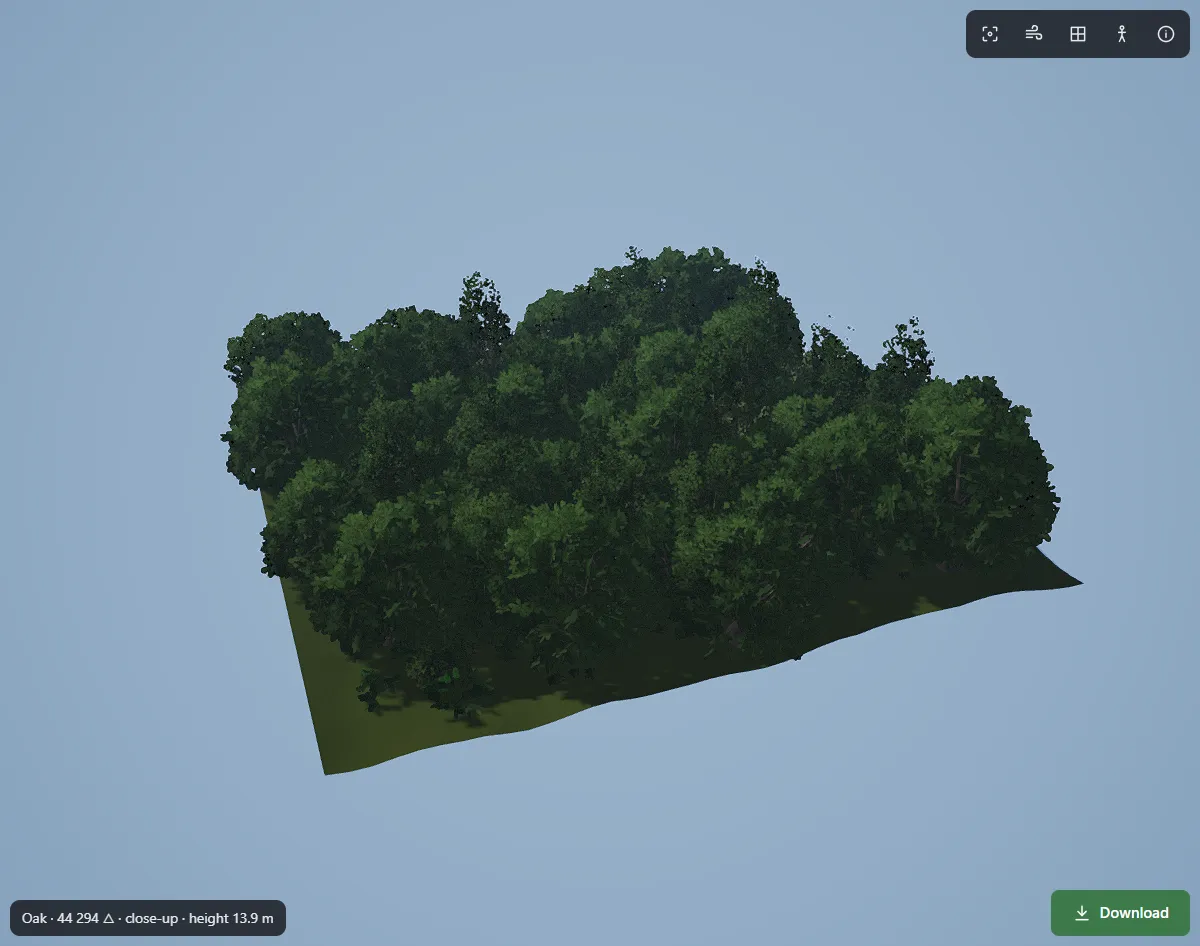 Hundreds of instanced trees: the right structure keeps draw calls almost flat as the forest grows.
Step 4. Leaves: alpha scissor, not alpha blending
Leaves are where most forests lose their performance — and most of their beauty, if transparency is set up wrong.
- Use Alpha Scissor (cutout), not Alpha. In the material, set Transparency → Alpha Scissor. Blended alpha forces sorting, breaks depth and shadows and is much more expensive across a crown with hundreds of overlapping cards.
- Smooth the edges with alpha to coverage. With MSAA enabled, set Alpha Antialiasing → Alpha Edge Clip (or Blend) to get soft leaf edges without real transparency.
- Fight overdraw with the shape of the card. A square card around a round twig wastes a lot of pixels. Cards cut to the shape of the leaf cluster shade far fewer invisible pixels. Check with the viewport's Display Overdraw mode: bright red crowns mean too many layers.
- Remove what nobody sees. Clusters deep inside the crown are invisible from outside; distant LODs should drop them first.
Step 5. Shadows: the hidden second forest
Every shadow-casting tree is rendered again for the shadow map. Three settings give most of the savings:
- Limit the shadow distance.
DirectionalLight3D→ Directional Shadow → Max Distance. Beyond 100–200 m few players notice missing shadows of individual trees. - Turn off shadows on far LODs. Set Cast Shadow → Off on LOD2 and on impostors (for MultiMesh — on the
MultiMeshInstance3Dof that level). - Use fewer cascades on weak hardware. Two cascades instead of four is often an invisible change and a noticeable saving.
Step 6. Occlusion culling and wind
Occlusion culling helps when big objects hide the forest: hills, cliffs, buildings, the terrain itself. Enable it in Project Settings → Rendering → Occlusion Culling, add an OccluderInstance3D and bake. Trees themselves are poor occluders — they are full of holes — so let the terrain do the work. Chunked MultiMeshes benefit most: a whole hidden chunk is skipped.
Wind should live in the vertex shader and read precomputed weights from the mesh: the trunk barely moves, big branches sway slowly, leaf tips flutter fast. Calculating that from scratch in the shader is expensive; reading two numbers per vertex is almost free.
Step 7. Measure on the target hardware
Never optimise blind. Godot gives you everything you need:
- Debugger → Monitors: draw calls in frame, objects, primitives (triangles) in frame.
- Debugger → Visual Profiler: how long the CPU and GPU spend on each part of the frame.
- Viewport → Display Overdraw / Wireframe: where the pixels and triangles go.
Measure before and after every change, on the weakest device you want to support — not only on your development PC.
Checklist
- Every tree has a triangle budget per distance, each level 3–4 times lighter.
- Trees use visibility ranges with their own LODs; automatic mesh LOD only for rocks and props.
- Thousands of trees are split into chunked MultiMeshes, about the size of the LOD0 distance.
- Leaves use Alpha Scissor plus alpha to coverage; cards follow the shape of the clusters.
- Shadow distance is limited; far LODs and impostors do not cast shadows.
- Occlusion culling is baked from terrain and large objects.
- Wind is a cheap vertex shader reading per-vertex weights.
- Draw calls and frame time are measured on the target device.
How FoliMesh fits into this
We built FoliMesh for our own large-scale game, so it produces trees that already follow these rules. The Godot package is a folder you drop into the project: a GLB with LOD0, LOD1, LOD2… generated to your triangle budgets, and a ready .tscn scene whose script sets visibility ranges for every level, a wind shader (trunk bend and branch sway are stored in the mesh's second UV channel), and a StaticBody3D with a capsule around the trunk for collision. Normal maps are already in the OpenGL format that Godot expects.
You can check any model before importing it with our free browser tools: the LOD viewer, the polygon counter and the glTF validator. For the bigger picture of tree tools, see our comparison of 3D tree generators.
FAQ
Does Godot 4 create LODs automatically? Yes — for imported glTF, .blend, Collada and FBX scenes it generates mesh LODs on import. It works best on continuous surfaces; for trees, hand-made or generated LODs with visibility ranges give more predictable results.
Why doesn't LOD work with my MultiMesh?
Godot selects one LOD level for the whole MultiMeshInstance3D. Split the instances into chunks, each with its own node and visibility range.
How many trees can Godot render? It depends on the budget per tree, not the engine. With chunked MultiMeshes, cheap far LODs and impostors, tens of thousands of trees on screen are realistic on desktop hardware; measure on your target device.
Alpha Scissor or Alpha Hash for leaves? Alpha Scissor with alpha to coverage is the usual choice. Alpha Hash gives softer edges without MSAA but looks noisy and works best with TAA.